Gemini Omni
Google DeepMind's any-to-any model: feed it text, images, a voice clip or a video and get a 4–10 second clip with sound — then change it by describing the change.
At a glance: Gemini Omni. The live spec card, price calculator and Generate button show here on the site.
What Gemini Omni Flash is
Announced at Google I/O 2026, Gemini Omni is Google DeepMind's first any-to-any model: the same network reads text, pictures, sound and video and, for now, writes video. Flash is the fast, cheap version. Where Veo is the cinematographer, Omni is the editor who understands plain English: "make it dusk", "swap the jacket for a red one", "slow the last two seconds". Faces, clothes and voices stay recognizable through the edit, and the physics — weight, collisions, fabric — are unusually right for a fast model.
Limits are real: 720p native (1080p and 4K are upscales), ten seconds, and the length is not guaranteed on every run — you may get eight when you asked for ten. Think of it as the fastest way to get a good draft and the best way to change a clip you already like.
Omni Flash is in the video studio as a preview: 98 credits for six seconds at 720p, no Google plan, credits never expire.
How Omni reads a prompt
Omni is conversational. It reacts to short, direct sentences more like an assistant than a render engine. Two habits:
- Creating: subject, action, one camera move, light, sound — one line each.
- Editing (with a reference video attached): say what changes and what stays. "Change the sky to overcast. Keep the people, the framing and the timing."
- Voice references: attach a short audio clip and write "the speaker uses the reference voice".
A detective in a rain-soaked Tokyo alley, sodium-lamp glow, teal-and-amber noir. He lights a cigarette, looks up. Slow push-in. Sound: rain, a distant train, the lighter click.
Using the reference video: change the time of day to golden hour and give the man a red jacket. Keep his movement, the camera and the timing exactly the same. Keep the original sound.
Omni's length is 'best effort'. For a clip that must be exactly 8 seconds, use Veo 3.1.
Every setting in the studio, explained
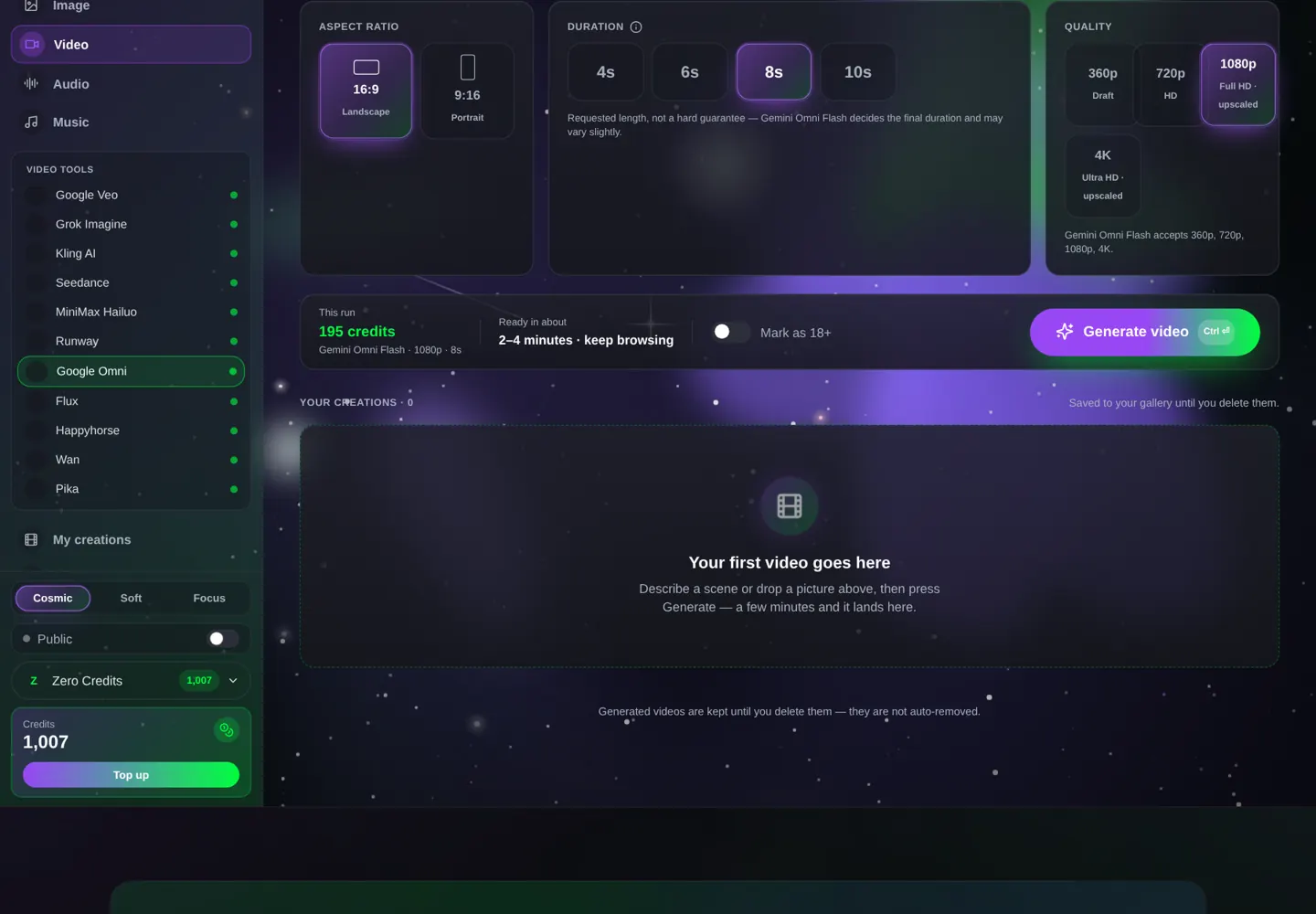
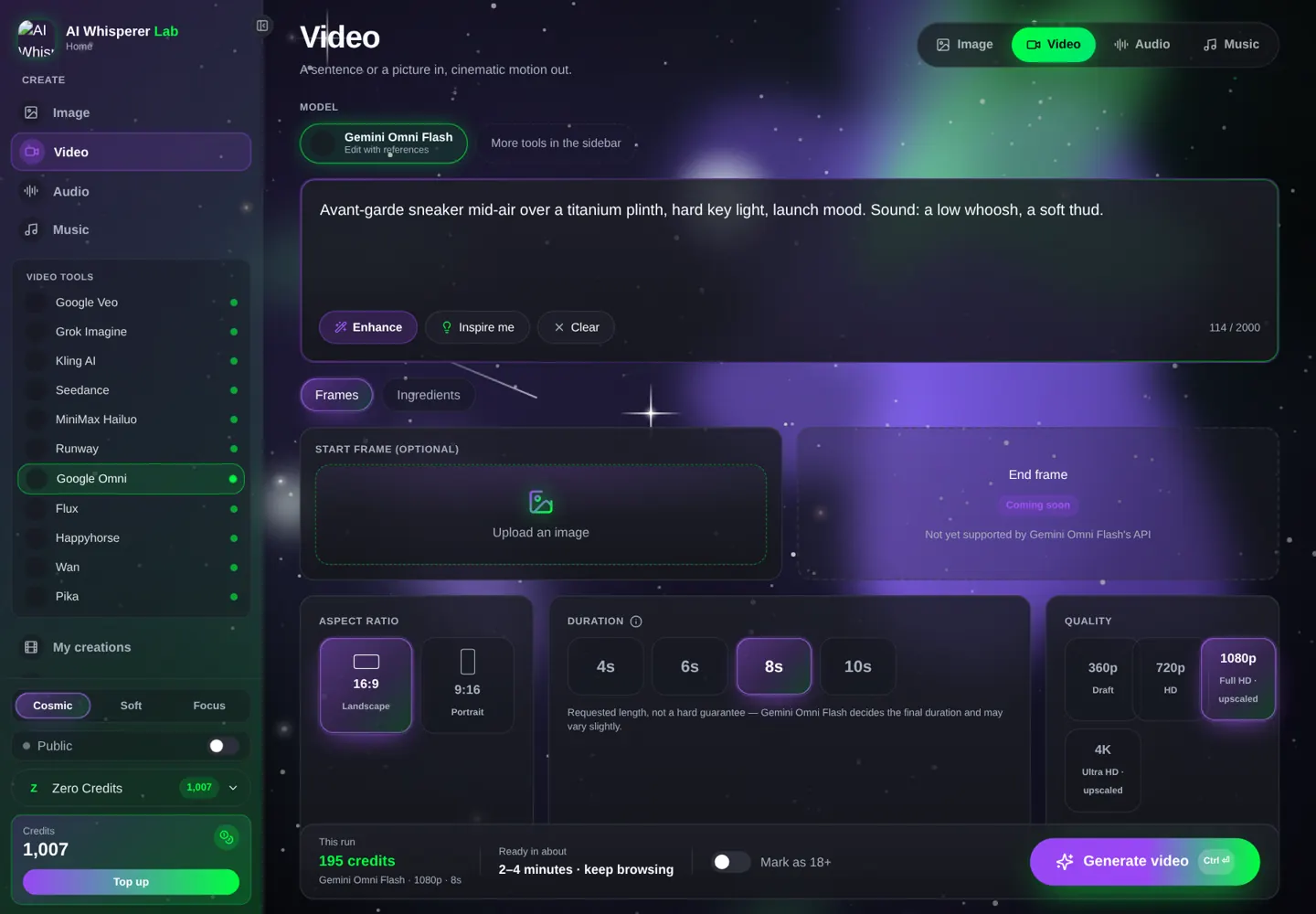
- Quality — Draft (360p) for pennies, HD (720p) native, Full HD and Ultra HD are upscaled from 720p.
- Length — 4 / 6 / 8 / 10 seconds, not guaranteed.
- Frames → Start frame — animate an image. (End frame is not supported by Omni yet.)
- Ingredients → 3 images + a reference video — the faces, products and motion to keep; the video can also be the clip you want to edit.
Your first Omni clip, step by step
- Open the video studio, pick Google Omni.
- HD (720p), 6 seconds.
- Paste the prompt below (98 credits). Generate.
- Now attach the result as the reference video and run the Edit prompt above — same clip, new time of day.
Avant-garde sneaker mid-air over a titanium plinth, hard key light, launch mood. The sneaker rotates slowly as it descends and lands. Sound: a low whoosh, a soft thud.
12 prompts you can run right now
Create
A droplet frozen as a crystalline crown on a dewy leaf, backlit sunrise macro; the crown collapses in slow motion into a ripple. Sound: a single water drop.
A poised studio host addresses the lens, warm three-point light, 85 mm bokeh, and says: "Three things you can try today." Sound: room tone.
A paper cup tips off a desk edge and falls, coffee arcing out, in slow motion; the camera follows it down. Office light. Sound: the splash.
A red kite flies over a windy beach, the string taut, a child running below. Wide shot, bright noon. Sound: wind, gulls, laughter.
Vertical 9:16. A hand drops ice cubes into a glass of iced tea, condensation forming, the camera pushes in. Sound: ice clinking.
A subway car interior at night, one passenger reading, the lights flicker once, the train rounds a bend. Static wide. Sound: rails, a flicker buzz.
Edit (attach the clip as the reference video)
Using the reference video: replace the background with a snowy mountain pass. Keep the person, their clothing and movement. Keep the original audio.
Using the reference video: make the last two seconds slow motion; everything else unchanged.
Using the reference video: change the jacket to olive green and the shoes to white. Nothing else changes.
Using the reference video: turn the daylight scene into night with street lamps; keep the camera and the people.
References
Use reference image 1 as the character and reference image 2 as the place. She walks into the café, orders, turns to camera and smiles. Sound: café ambience.
The speaker uses the reference audio voice. A man at a podium says: "Thank you all for coming." Warm hall light, static medium. Sound: a small hall, applause fading.
Editing by description: the workflow
Omni's edit mode is the reason to learn it. The loop is: generate or upload a clip → attach it as the reference video → describe one change and one 'keep' → review → attach the result and describe the next change. Each pass costs the same as a generation, so stack changes when they are compatible ("golden hour, and a red jacket") and split them when they are not ("replace the background" then "slow the ending").
Three edits work reliably: relighting (time of day, weather, practical lights), wardrobe and color (a jacket, a car, a wall), and retiming (slow-motion on a section, a longer hold at the end). Two edits are hit-and-miss: adding a new person to a scene, and changing the camera move after the fact — for those, regenerate instead.
Always name what must stay. Omni is generous with interpretation; "keep the person, the framing and the timing" is the sentence that stops it from repainting the shot.
Where Omni beats Veo — and where it does not
| Gemini Omni Flash | Veo 3.1 Fast | |
|---|---|---|
| Native resolution | 720p | up to 4K |
| Length | 4–10 s, best effort | 4/6/8 s, exact |
| Edit an existing video | Yes, in plain English | No |
| Voice reference | Yes | No |
| 6 s at 720p | 98 credits | 90 credits |
| Use it for | Edits, drafts, references + voice | Finals, exact timing, 4K |
Omni draft → Veo final
Find the shot on Omni for under a dollar, then re-run the winning prompt on Veo 3.1 Fast at 1080p for delivery.
Avant-garde sneaker mid-air over a titanium plinth, hard key light, launch mood, rotating slowly as it descends and lands. SFX: a low whoosh, a soft thud.
Nano Banana Pro → Omni (animate the frame)
Studio still of a titanium plinth under a hard key light, a sneaker floating above it, black background, 16:9.
Animate the start frame: the sneaker rotates and lands on the plinth. Sound: whoosh, thud.
Mistakes that waste credits
- Expecting exact length. Omni may return shorter. Use Veo when the cut needs precision.
- Upscaled 4K for drafts. Ultra HD is an upscale of 720p; test at Draft or HD.
- Edits without "keep". Say what must stay, or Omni may reinterpret the whole scene.
- Long dialogue. One short line; Omni is not a dialogue specialist.
What it costs, what it takes
| Settings | Credits | About | Typical wait |
|---|---|---|---|
| Draft 360p · 6 s | 33 | $0.33 | 30–60 s |
| HD 720p · 6 s | 98 | $0.98 | 1–2 min |
| HD 720p · 10 s | 163 | $1.63 | 1–3 min |
| Full HD · 8 s | 195 | $1.95 | 2–3 min |
Prices are shown under the Generate button before you spend. Credits never expire.
FAQ
What does any-to-any mean?
Omni reads text, images, audio and video as input and writes video as output — you can mix them in one request.
Can Omni edit a video I already have?
Yes. Attach it as the reference video and describe the change and what must stay.
How long are Omni clips?
4 to 10 seconds, best effort — the model may stop a little early.
Is the 4K real?
No, 720p is native; 1080p and 4K are upscales. Use Veo 3.1 or Kling 3.0 for native 4K.
Does it generate sound?
Yes, synchronized audio with every clip; a reference voice can be attached.
Do I need a Google plan?
No. Omni Flash runs in the Lab per clip.
Related tools
Veo 3.1 for exact, high-resolution finals · Kling 3.0 Omni for reference-locked multi-shot · Runway Aleph 2.0 for heavier video edits · Nano Banana Pro for start frames. Same studio, one wallet.